
Turns a coin funnel into a real-time view of orbital mechanics. An astronomical camera watches a coin well from above; GravityWell processes each frame through a Metal GPU pipeline, detects glowing-ball positions, and draws their trails on a public display. Visitors see invisible gravitational behavior become visible.
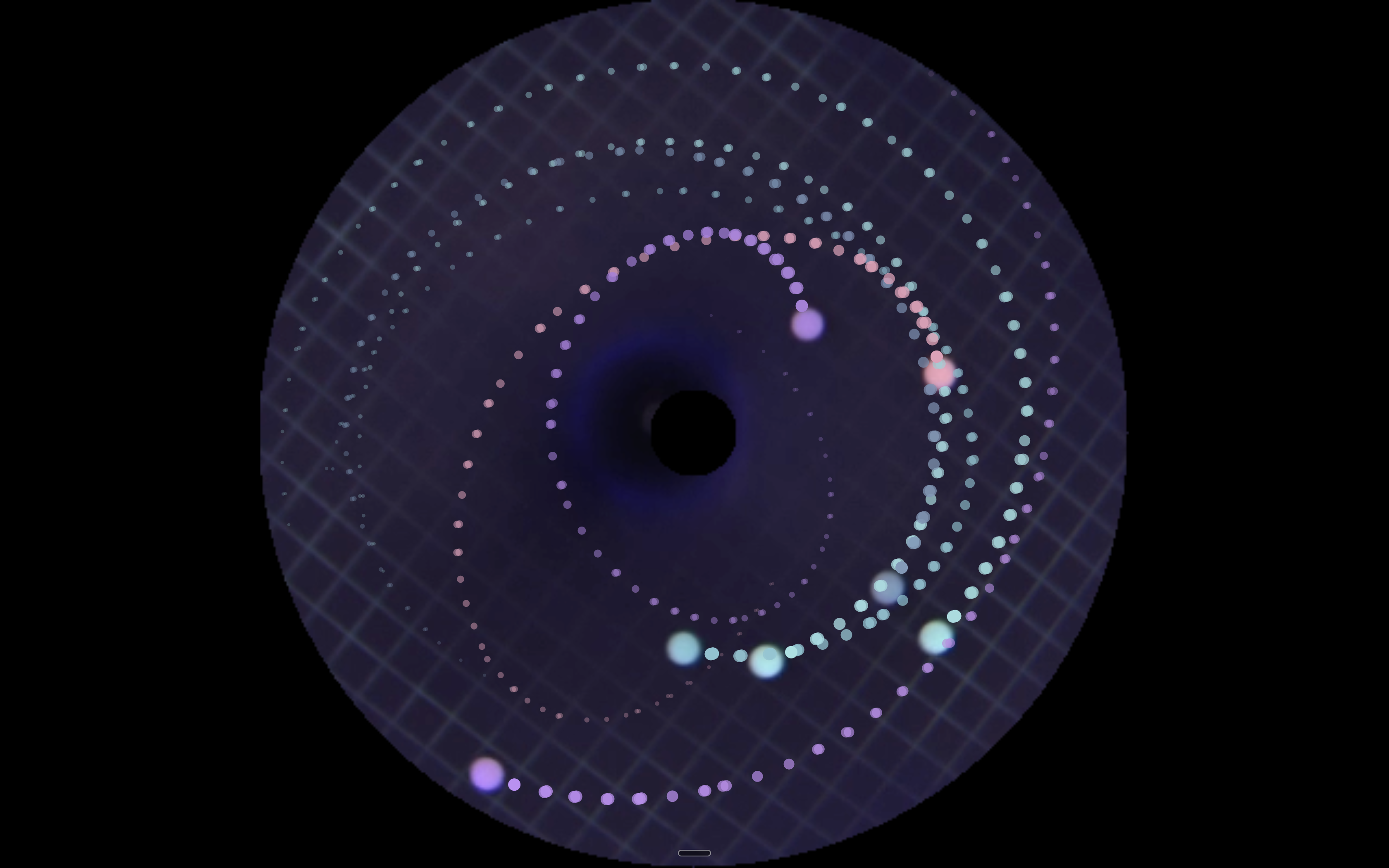
The full-screen public display. Every ball in the well is tracked at once, each with its own color-identified trail. The trail decays over a few seconds so the full orbital history stays visible as the ball spirals toward the center of the well.
Inside the App
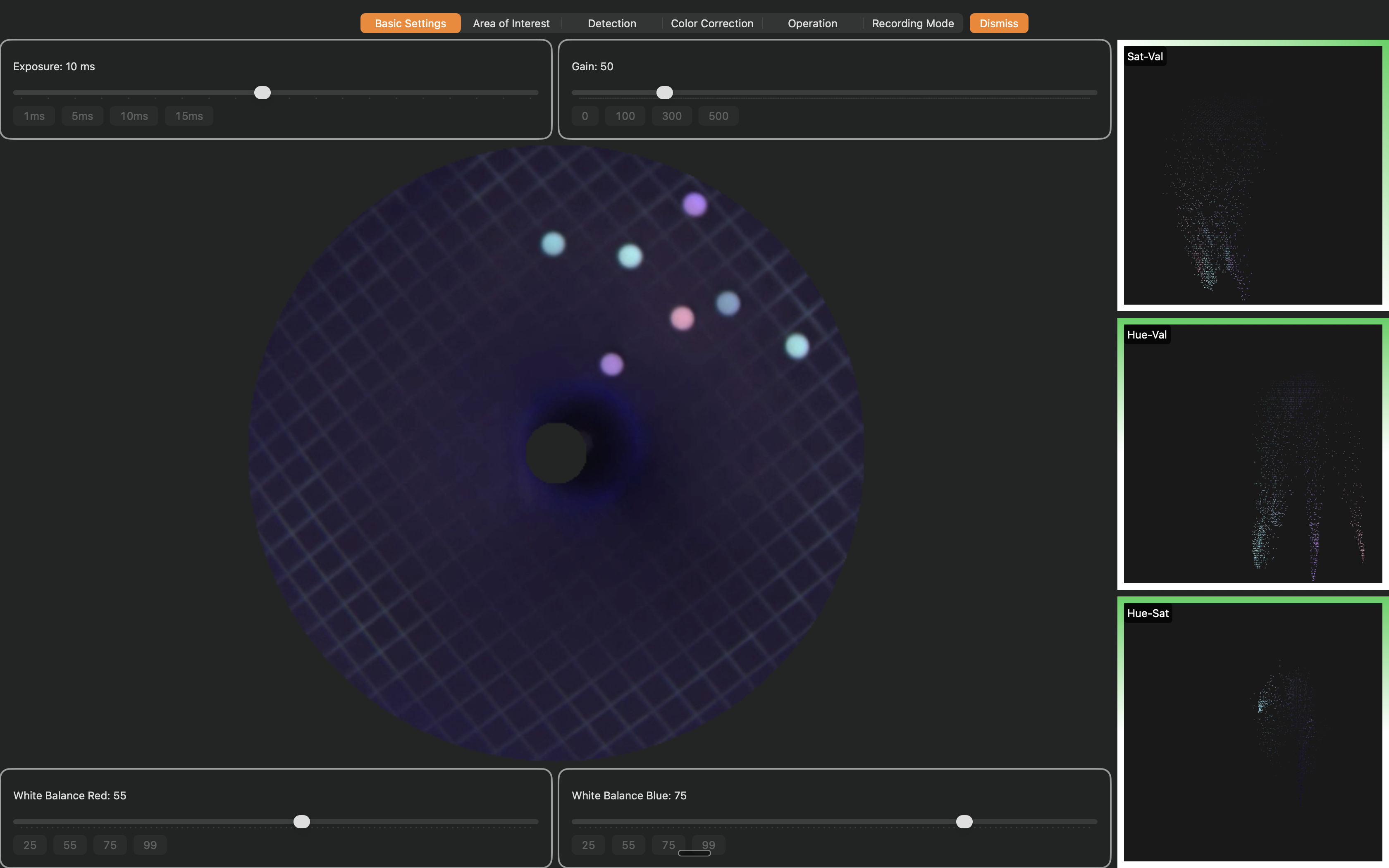
The main settings view shows the live camera feed with detected balls and three HSV color-analysis plots. Exposure, gain, and white balance controls let the operator tune the image for the exhibit’s ambient lighting.
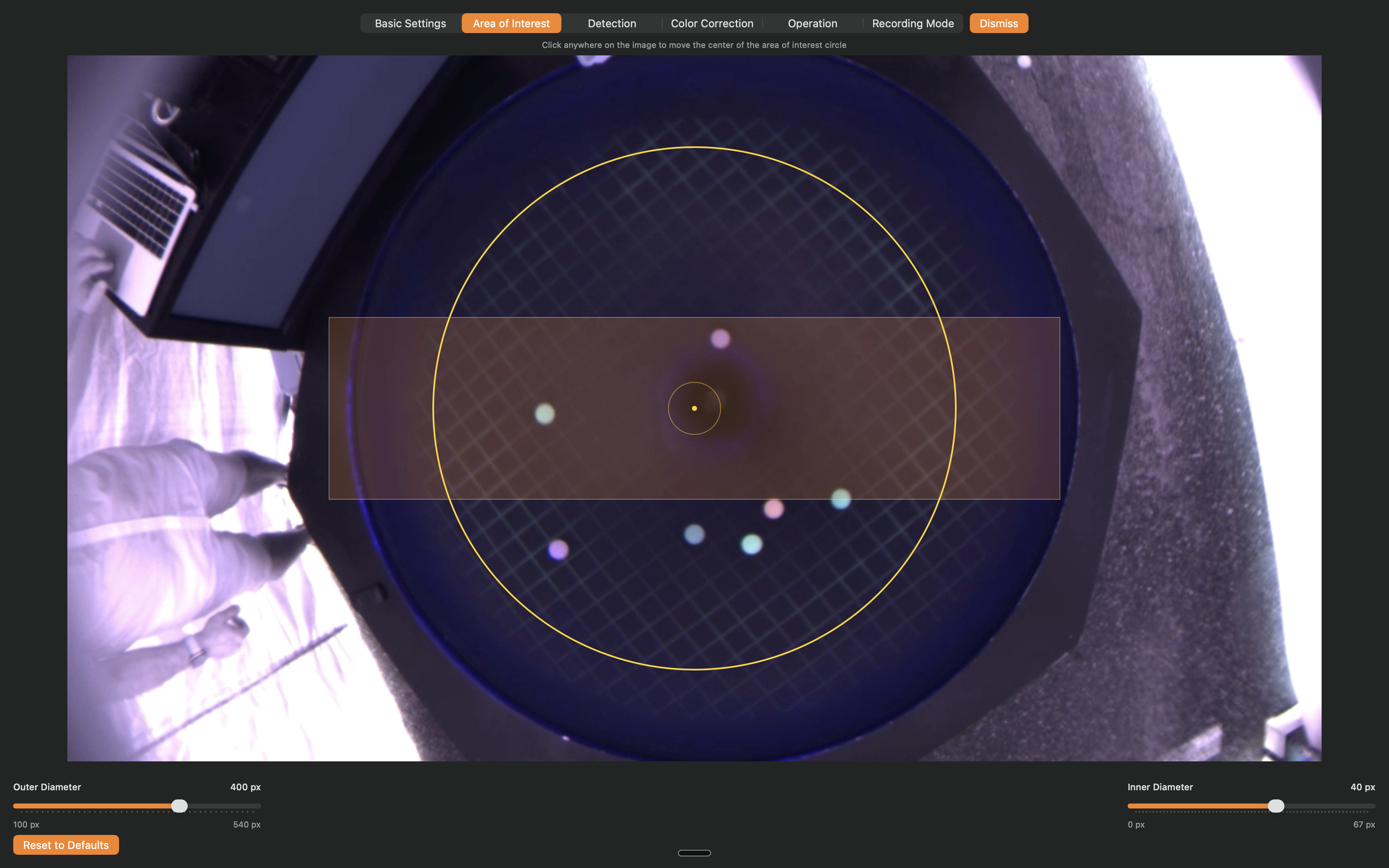
The area-of-interest page defines where in the camera frame the software looks for balls. The donut-shaped mask excludes the well rim and center hole.
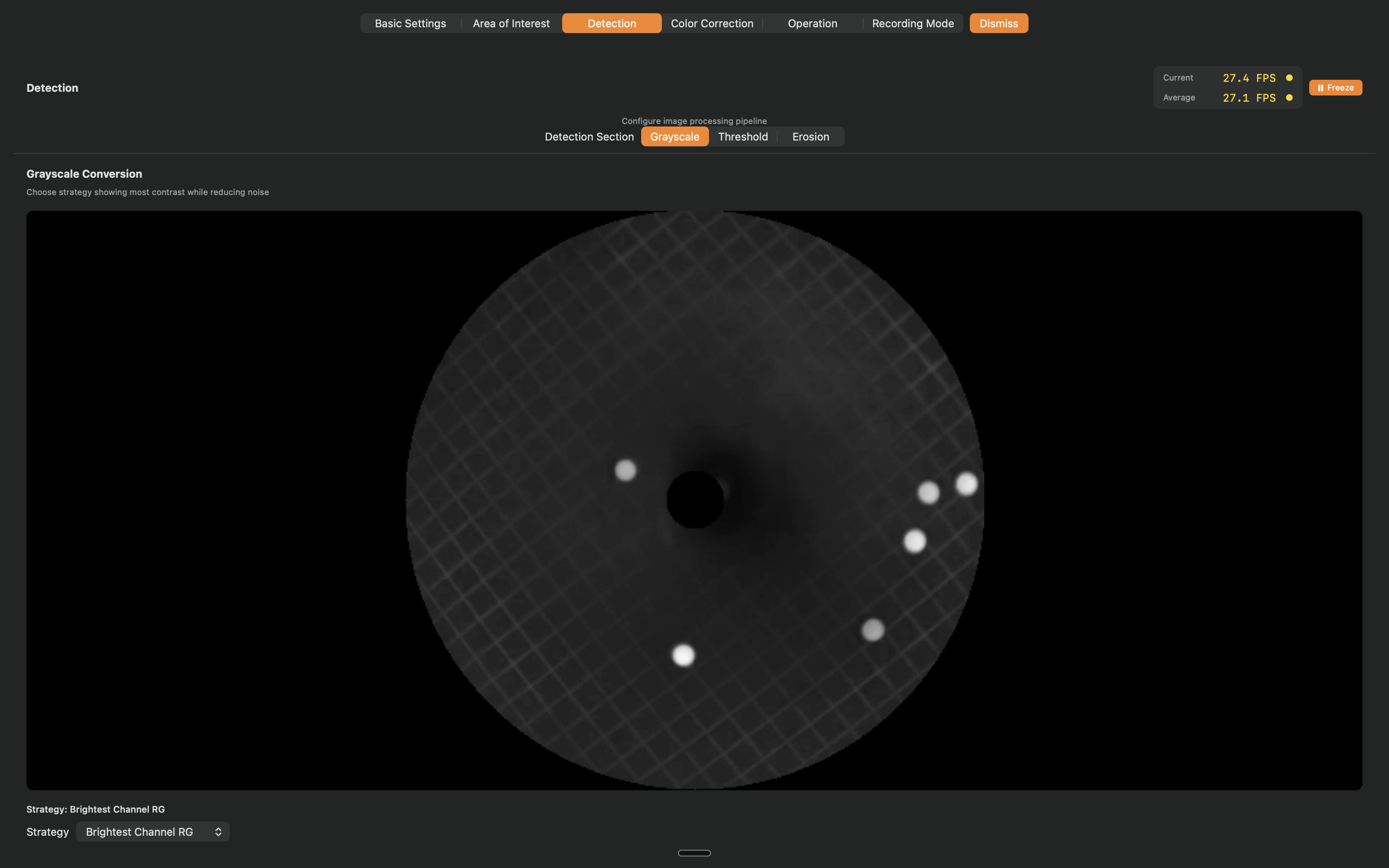
The detection pipeline runs entirely on the GPU via Metal compute shaders. This page shows the grayscale conversion step; additional tabs expose threshold, erosion, and the final connected-component output. Current frame rate is displayed in the top right.
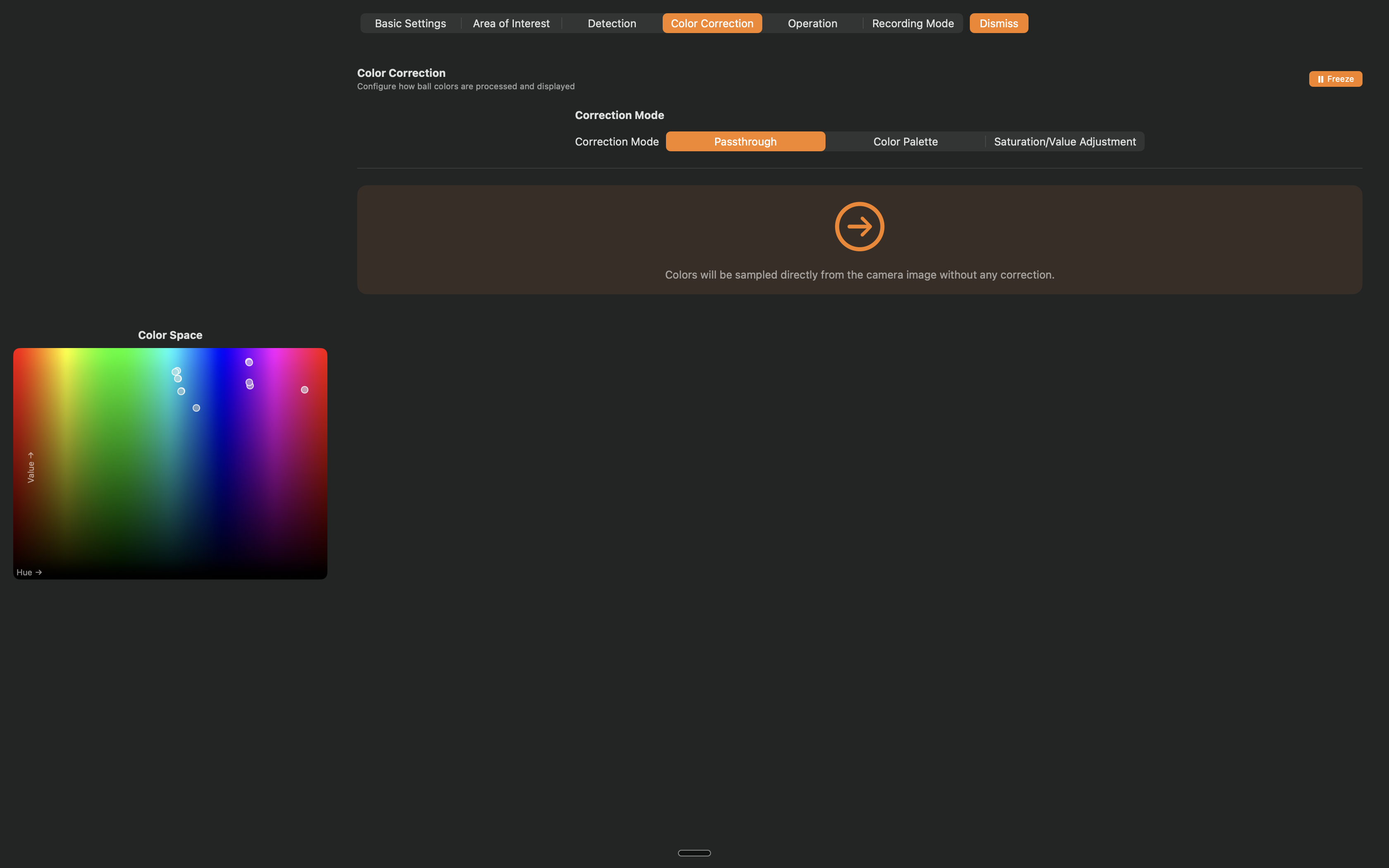
Color correction handles varying exhibit lighting. Three modes are available: passthrough for well-lit spaces, a color palette for manual mapping, and saturation/value adjustment for fine-tuning.
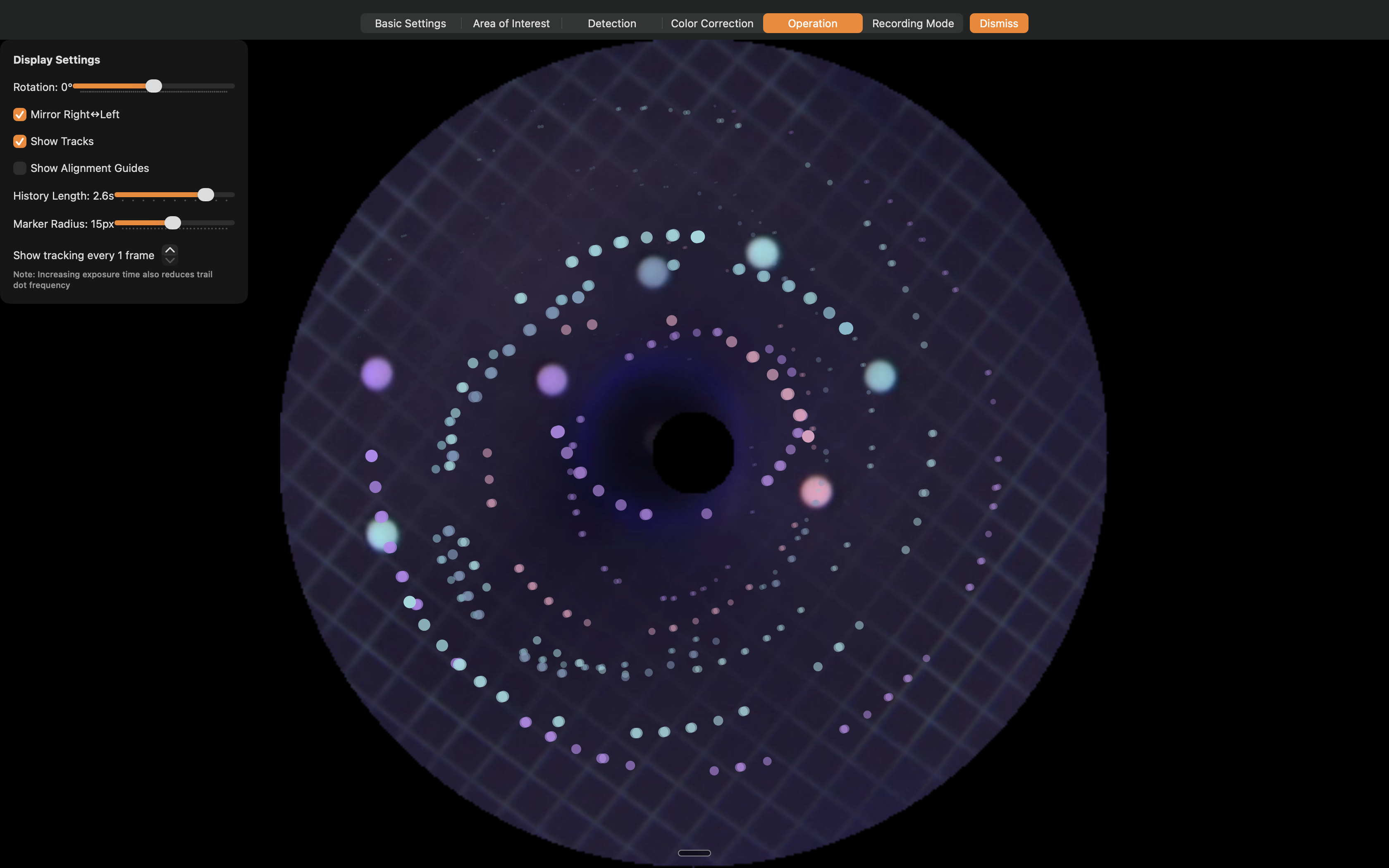
The operation page overlays display controls on the live output: rotation, mirroring, trail history length, marker size, and position-update frequency. These settings let the operator match the display to the physical orientation of the well.
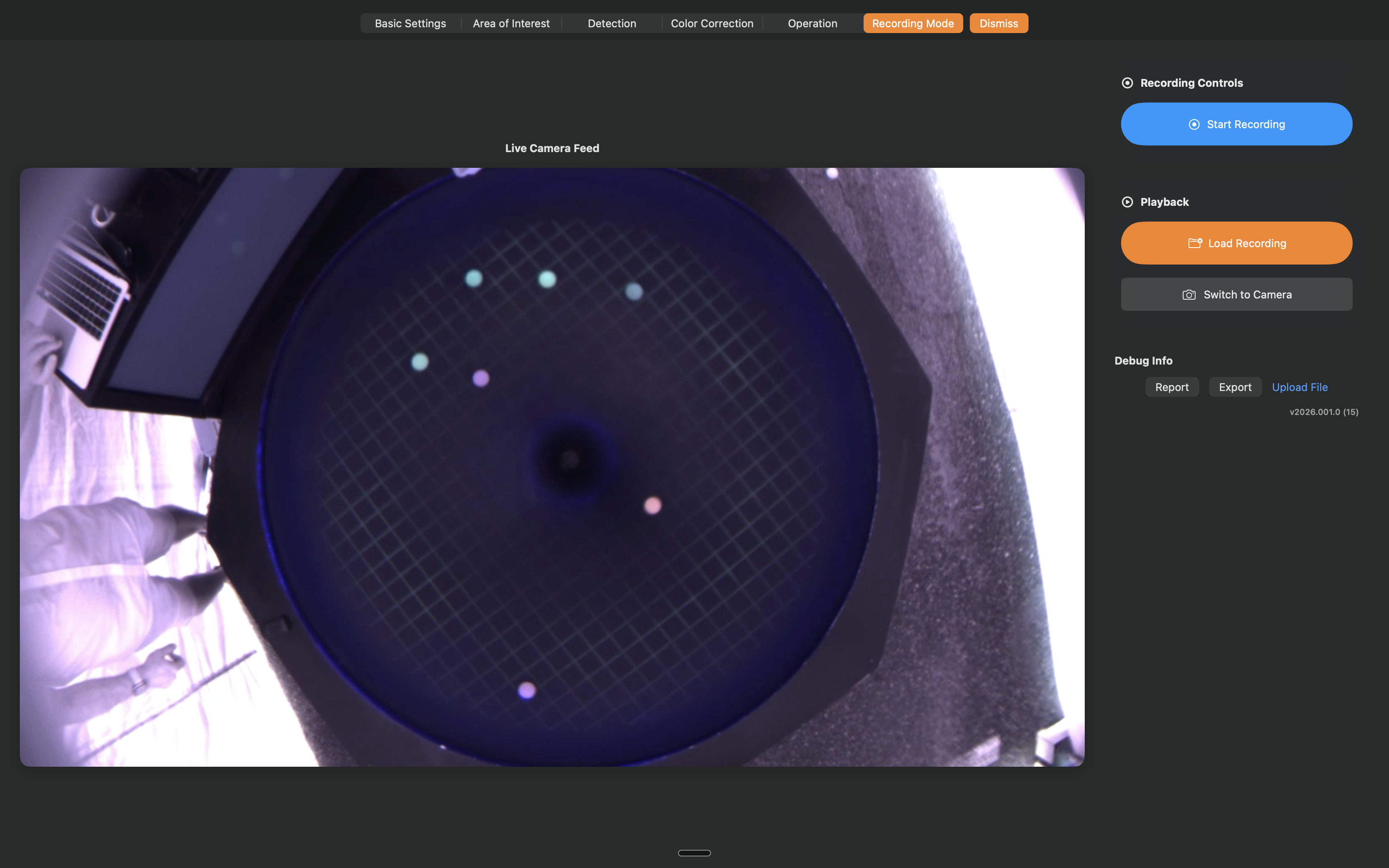
Recording mode captures sessions for later playback, debugging, and customer support. The operator can load a saved recording to replay the detection pipeline without a live camera.
How it works
An ASI astronomical camera captures a realtime frame stream of the well. A Metal compute pipeline debayers the raw sensor data, crops to the area of interest, thresholds and erodes the image, finds connected components, and samples their colors. The result is a set of ball positions and colors streamed to the full-screen public display that renders each ball’s trail in real time.
Built for unattended operation
GravityWell runs in museums and science centers for years without a technician on site. Zero-allocation GPU hot paths, automatic reconnection on USB drops, an in-app state-export button that packages runtime state as a support report in one click, notarized Developer ID signing, and an XPC service boundary that isolates the camera driver from the main app.
Specs
- macOS 14 or newer, Apple Silicon preferred (Rosetta 2 required for the camera XPC service)
- Camera: ZWO ASI astronomical camera via the open ASI SDK
- Display: any HDMI/DisplayPort monitor
- Install kit: a UV blacklight, a set of fluorescing bouncy balls, mounting hardware, and a 30-minute first-time calibration workflow
- Support: in-app state export and file upload — no SSH, no VPN, no site visits required
Engineering case study
For a longer write-up on the Metal image-processing pipeline, the reliability story, and how a one-person studio supports five installations across two continents, see the Gravity Well case study.